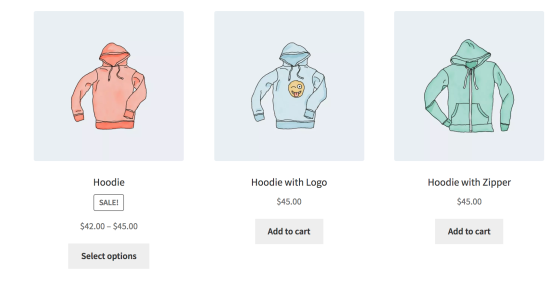
The [products] shortcode is one of our most robust shortcodes.
The [products] shortcode allows you to display products by post ID, SKU, categories, attributes, with support for pagination, random sorting, and product tags, replacing the need for multiples shortcodes such as [featured_products], [sale_products], [best_selling_products], [recent_products], [product_attribute], and [top_rated_products], which were needed previously.
Available Product Attributes
The following attributes are available to use in conjunction with the [products] shortcode. They have been split into sections for primary function for ease of navigation, with examples below.
Display Product Attributes
These attribute are used to alter the way products are displayed, ordered, and arranged within the [products] shortcode:
limit– The number of products to display. Defaults to and-1(display all) when listing products, and-1(display all) for categories.columns– The number of columns to display. Defaults to4.paginate– Toggles pagination on. Use in conjunction withlimit. Defaults tofalseset totrueto paginate .orderby– Sorts the products displayed by the entered option. One or more options can be passed by adding both slugs with a space between them. Available options are:title– The product title. This is the defaultorderbymode if no other attribute is used.date– The date the product was published.id– The post ID of the product.menu_order– The Menu Order, if set (lower numbers display first).popularity– The number of purchases.rand– Randomly order the products on page load (may not work with sites that use caching, as it could save a specific order).rating– The average product rating.
order– States whether the product order is ascending (ASC) or descending (DESC), using the method set inorderby. Defaults toASC.skus– Comma-separated list of product SKUs.category– Comma-separated list of category slugs.tag– Comma-separated list of tag slugs.class– Adds an HTML wrapper class so you can modify the specific output with custom CSS.on_sale– Retrieve on sale products. Not to be used in conjunction withbest_sellingortop_rated.best_selling– Retrieve the best selling products. Not to be used in conjunction withon_saleortop_rated.top_rated– Retrieve top-rated products. Not to be used in conjunction withon_saleorbest_selling.
If you do not include the orderby attribute, the system displays products in the default sorting order, which is by menu order, then title.
Content Product Attributes
These attributes are used to determine which products are displayed inside the [products] shortcode:
attribute– Retrieves products using the specified attribute slug.terms– Comma-separated list of attribute terms to be used withattribute.terms_operator– Operator to compare attribute terms. Available options are:AND– Will display products from all of the chosen attributes.IN– Will display products with the chosen attribute. This is the defaultterms_operatorvalue.NOT IN– Will display products that are not in the chosen attributes.
tag_operator– Operator to compare tags. Available options are:AND– Will display products from all of the chosen tags.IN– Will display products with the chosen tags. This is the defaulttag_operatorvalue.NOT IN– Will display products that are not in the chosen tags.
visibility– Will display products based on the selected visibility. Available options are:visible– Products visible on shop and search results. This is the defaultvisibilityoption.catalog– Products visible on the shop only, but not search results.search– Products visible in search results only, but not on the shop.hidden– Products that are hidden from both shop and search, accessible only by direct URL.featured– Products that are marked as Featured Products.
category– Retrieves products using the specified category slug.tag– Retrieves products using the specified tag slug.cat_operator– Operator to compare category terms. Available options are:AND– Will display products that belong in all of the chosen categories.IN– Will display products within the chosen category. This is the defaultcat_operatorvalue.NOT IN– Will display products that are not in the chosen category.
ids– Will display products based on a comma-separated list of Post IDs.skus– Will display products based on a comma-separated list of SKUs.
Note: If the product is not showing and should be, make sure it is not set to “Hidden” in the “Catalog Visibility” settings.
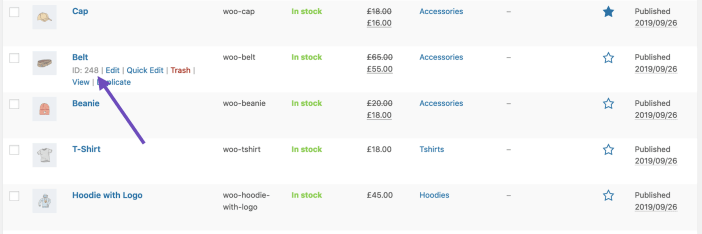
To find the Product ID, go to the Products screen, hover over the product and the ID appears as shown below.
Special Product Attributes
These attributes cannot be used with the “Content Attributes” listed above, as they will likely cause a conflict and not display. You should only use one of the following special attributes.
best_selling– Will display your best selling products. Must be set totrue.on_sale– Will display your on-sale products. Must be set totrue.
Examples of [Product] Shortcode Scenarios
Below you’ll find a few examples of how to use the [product] shortcode along with attributes (args) .
Scenario 1 – Random Sale Items
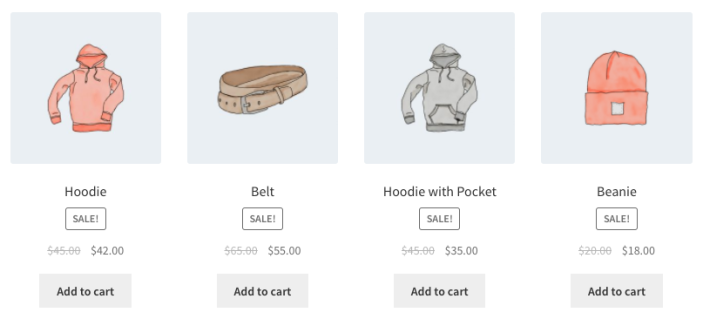
Here’s how to display four sale products at random:
[products limit="4" columns="4" orderby="popularity" class="quick-sale" on_sale="true" ]
This shortcode explicitly states four products with four columns (which will be one row), showing the most popular on-sale items. It also adds a CSS class quick-sale, which we can modify with custom CSS.
Scenario 2 – Featured Products
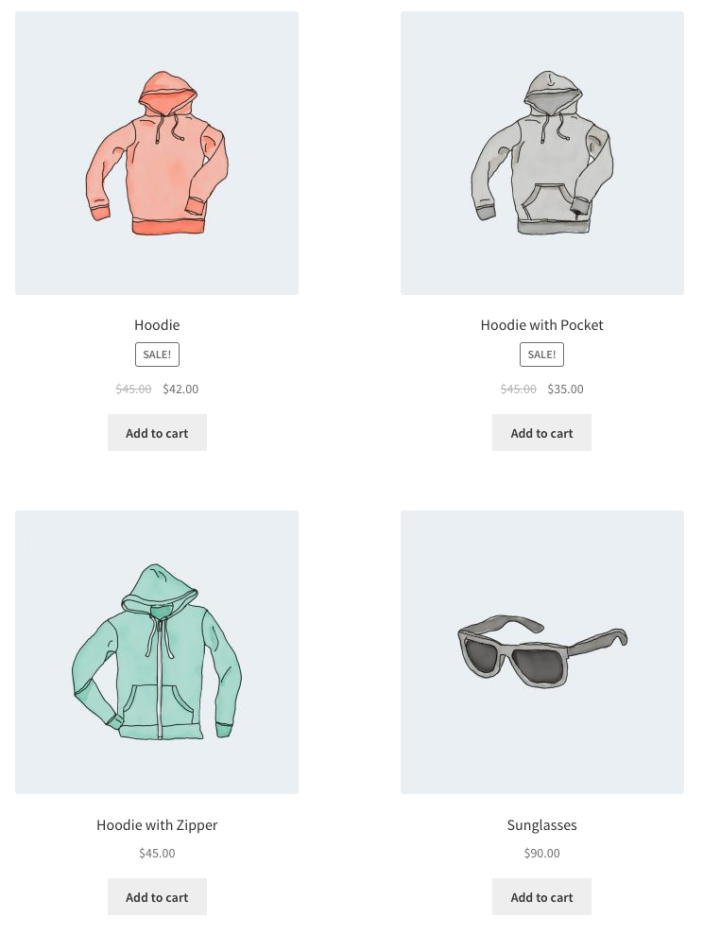
Here’s how to display featured products, two per row, with a maximum of four items:
[products limit="4" columns="2" visibility="featured" ]
This shortcode says up to four products will load in two columns, and that they must be featured. We did not use the orderby attribute. So the shortcode shows products in the default sorting, which is by menu order, then title. (A to Z by default because order is not used).
Scenario 3 – Best Selling Products
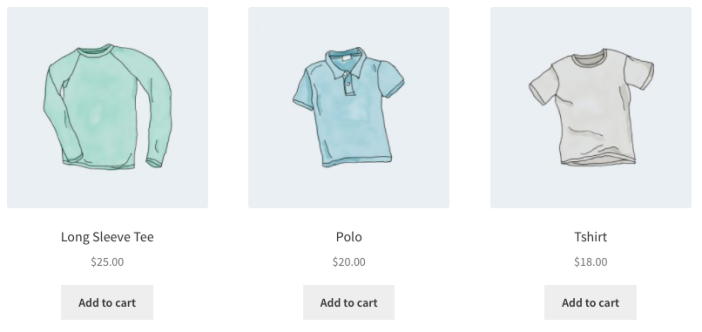
Here’s how you would display three top best selling products in one row:
[products limit="3" columns="3" best_selling="true" ]
Scenario 4 – Newest Products
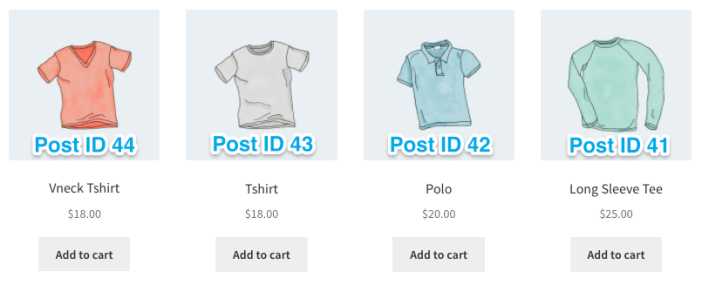
In this example, we’ll display the newest products first – four products across one row. To accomplish this, we’ll use the Post ID (which increases incrementally with new posts, and is generated when the product page is created), along with the order and orderby command. Since you can’t see the Post ID from the frontend, the ID#s have been superimposed over the images.
[products limit="4" columns="4" orderby="id" order="DESC" visibility="visible"]
Scenario 5 – Specific Categories
Here’s how to display only hoodies and shirts, but not accessories. We’ll configure it to display in two rows of four:
[products limit="8" columns="4" category="hoodies, tshirts" cat_operator="AND"]
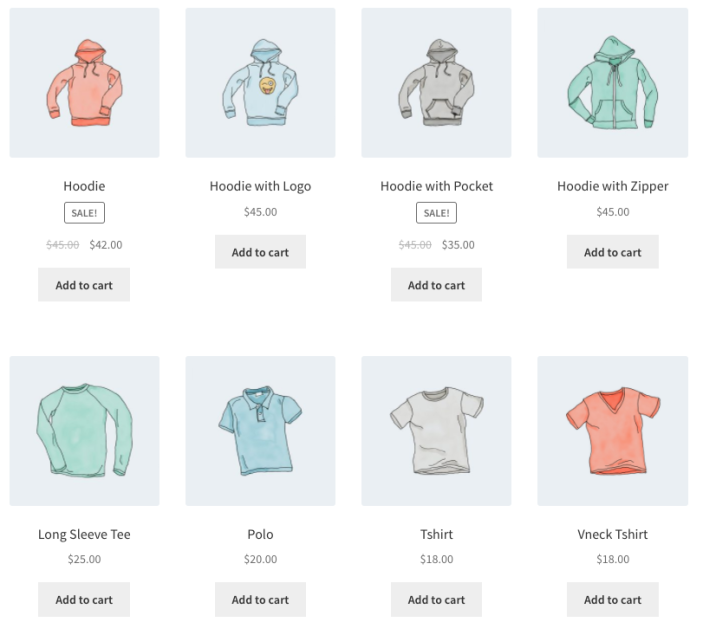
Alternatively, if we only want to display products not in those categories. All we need to change is the cat_operator to NOT IN.
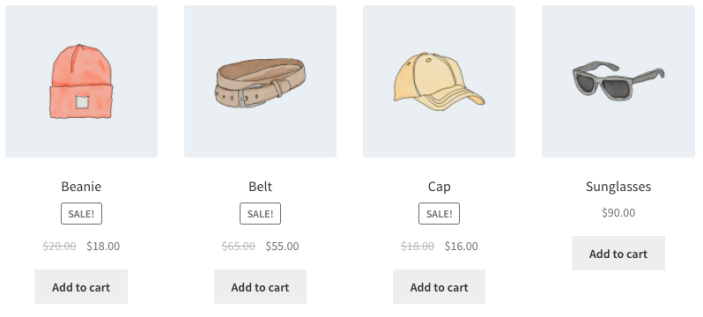
[products limit="8" columns="4" category="hoodies, tshirts" cat_operator="NOT IN"]
Note that even though the limit is set to 8, there are only four products that fit that criteria, so four products are displayed.
Scenario 6 – Attribute Display
Each of the clothing items has an attribute, either “Spring/Summer” or “Fall/Winter” depending on the appropriate season, with some accessories having both since they can be worn all year. In this example, there are three products per row, displaying all of the “Spring/Summer” items. That attribute slug is season, and the attribute’s terms are warm and cold. We’ve also sorted from the newest products to the oldest.
[products columns="3" attribute="season" terms="warm" orderby="date"]
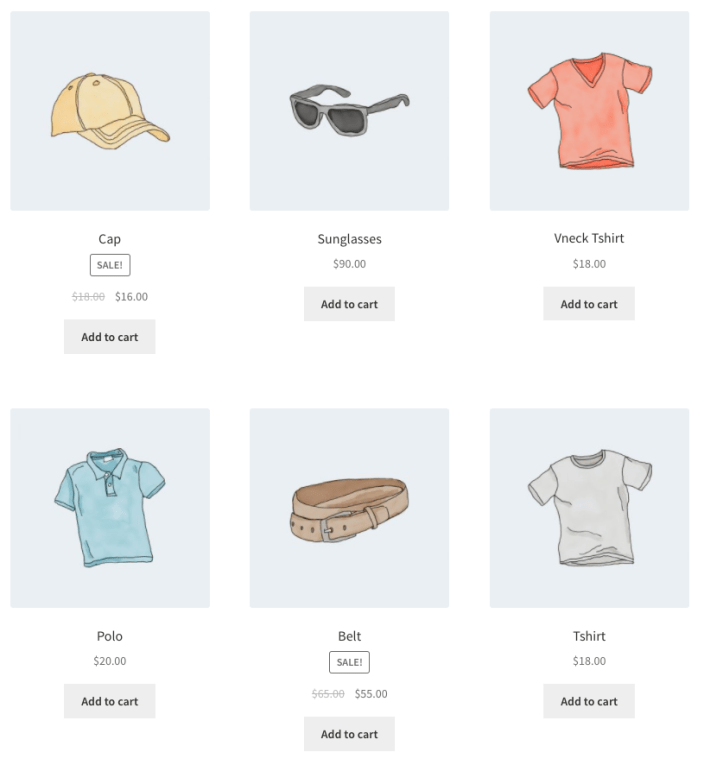
Alternatively, if we want to display everything but warm weather products, I could add NOT IN as my terms_operator:
[products columns="3" attribute="season" terms="warm" terms_operator="NOT IN"]
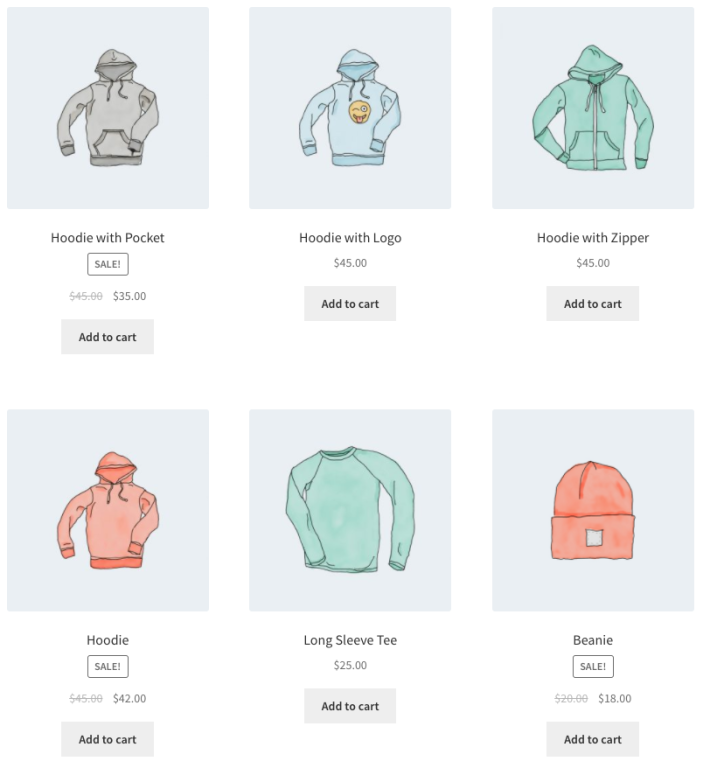
Note that by using NOT IN, we exclude products that are both in “Spring/Summer” and “Fall/Winter”. If we want to show all cold-weather appropriate gear including these shared accessories, we would change the term from warm to cold.
Scenario 7 – Show Only Products With tag “hoodie”
[products tag="hoodie"]